

The Short Answer: Build One Clean Master, Then Adapt It for Each Platform
To turn one video into content for TikTok, Instagram Reels, YouTube Shorts, and Facebook Reels, start with footage and music you have the right to use. Then edit a single watermark-free vertical master and keep important text inside a conservative safe zone. From that master, write a separate hook, caption, hashtag set, and call to action for each platform. Add AI disclosures where they apply, schedule natively or with a tool like Metricool, and review the analytics before you make the next one.
The video itself rarely needs to change much. The packaging around it does. This guide walks through each step, then gives you an example workflow and a checklist you can reuse.
Step 1: Confirm You Have Permission to Use the Footage and Music
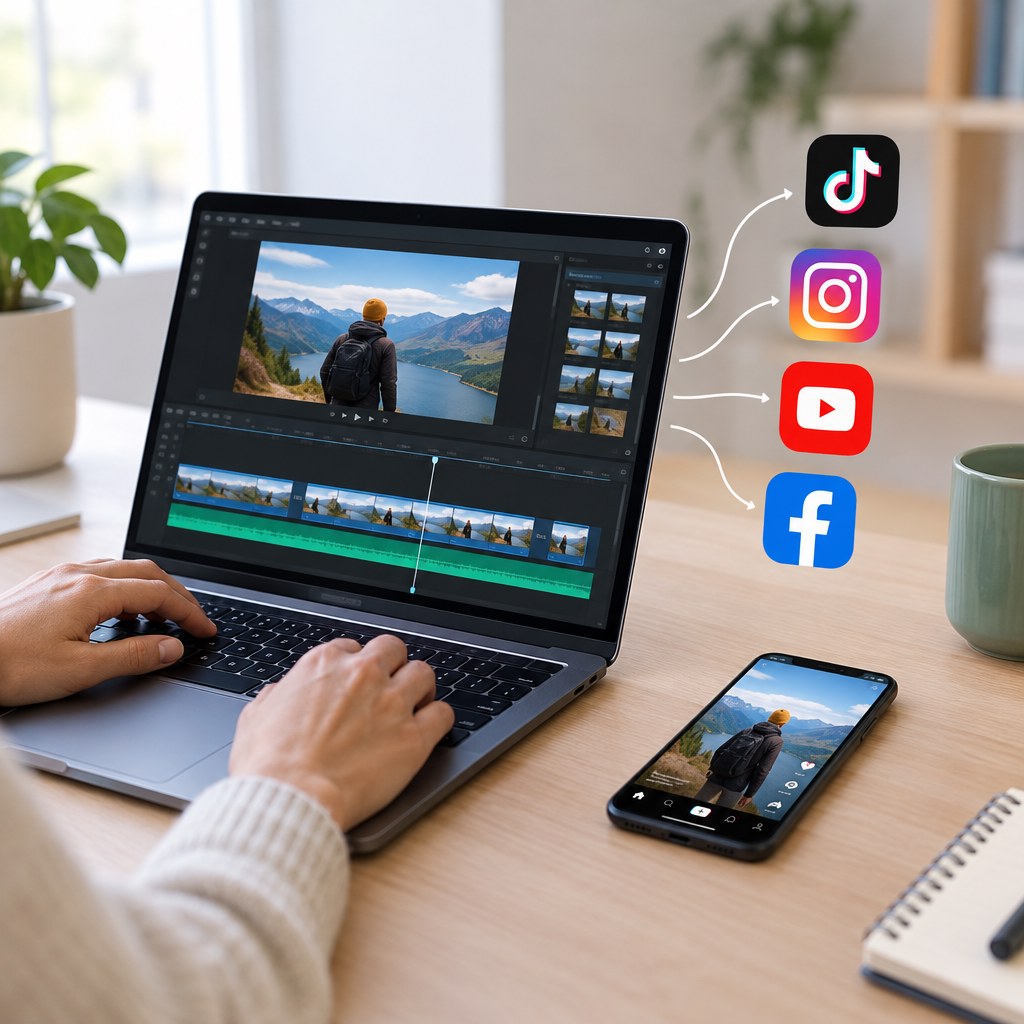
Repurposing multiplies your reach, and it multiplies your risk too. If a clip breaks rights rules, it can break them on four platforms at once. Before you edit, check the following:
- Footage: Did you shoot it yourself, license it, or get written permission from the creator? Clips from films, TV, or other creators’ videos are not automatically “fair use” just because they are short.
- People on camera: If identifiable people appear, especially in private settings or in sponsored content, get their consent.
- Music: Each platform’s in-app music library is licensed for use inside that app. A song you added in TikTok’s editor is not automatically cleared for YouTube or Facebook. The safest approach is to export your master with no music, or with royalty-free tracks you have licensed for multi-platform use. Then add trending in-app sounds separately on each platform.
- Business accounts: Some apps limit commercial accounts to a smaller commercial music library. Check what your account type allows.
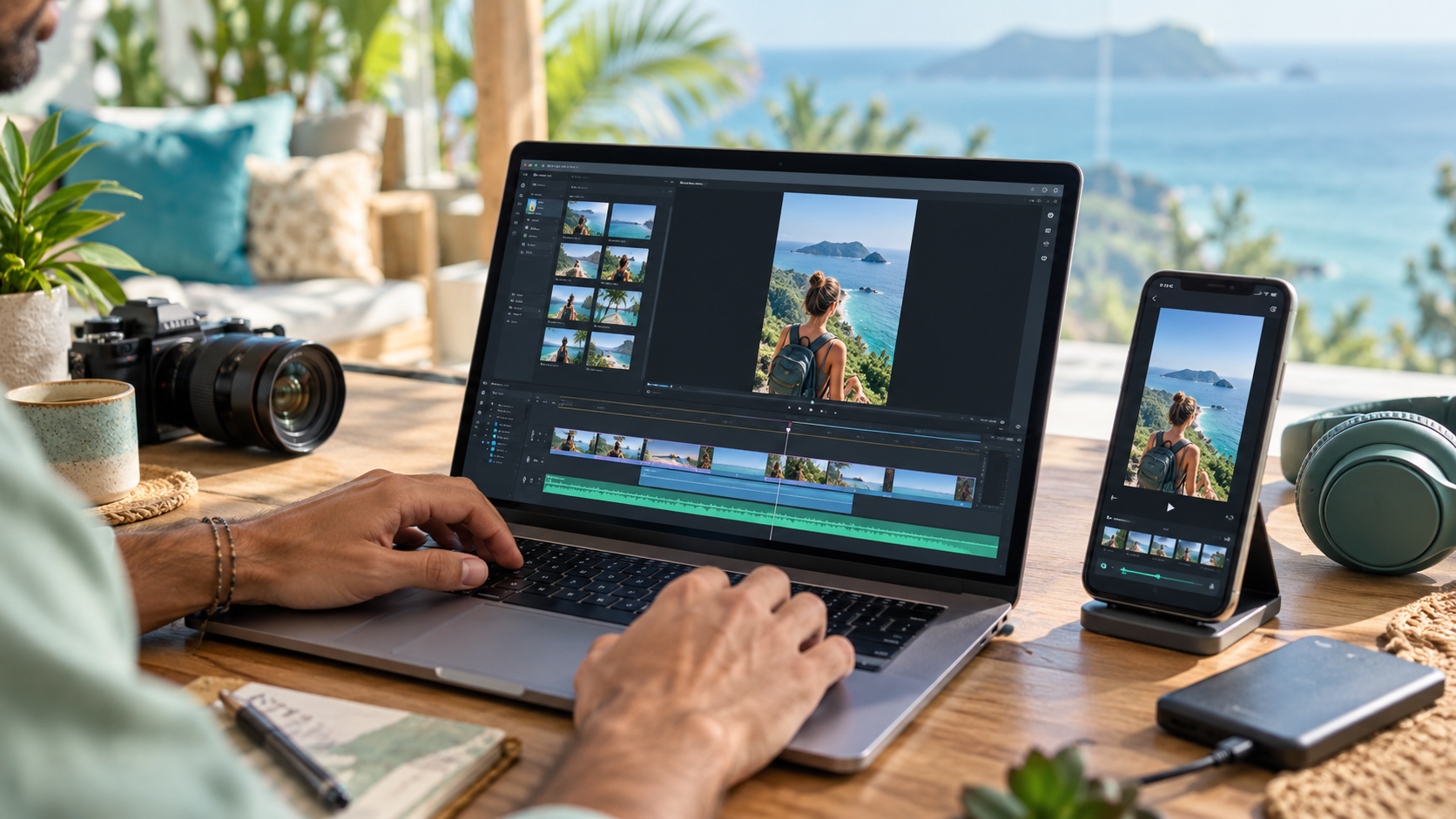
Step 2: Edit a Watermark-Free Vertical Master
Your master file is the single source every platform version comes from. Edit it in a desktop or mobile editor, not inside one social app, so it carries no platform watermark. Many creators believe recommendation systems favor clips that don’t show a competitor’s logo. Nobody can guarantee how any algorithm behaves, but a clean file always looks more professional and is the safer choice.
Master File Recommendations
- Vertical 9:16 aspect ratio, commonly exported at 1080×1920.
- A strong first one to two seconds that works without sound.
- Burned-in captions, or a plan to add auto-captions natively.
- Two exports: one with your voice and sound effects only (no music), and one with licensed music.
If you edit in CapCut, the Digital Nomad Clips guide “How to Use CapCut for Short-Form Video Clipping” covers trimming, captions, and export settings in detail. Always confirm your export carries no end-card watermark.
Understanding 9:16 Safe-Zone Differences
Every app overlays its own interface on top of your video: usernames, captions, like and share buttons, and progress bars. These overlays sit in slightly different places on each platform and can shift when an app updates. So don’t try to memorize exact pixel values. Use a conservative “center-safe” approach:
- Keep key text and faces roughly in the middle of the frame, away from the bottom portion where captions and usernames appear.
- Leave clear space on the right edge, where action buttons usually stack.
- Avoid placing anything critical at the very top, where some apps show tabs or search icons.
- Preview your draft in each app before publishing to catch any overlap.
Step 3: Write Platform-Specific Hooks, Captions, Hashtags, and CTAs
The same clip can land differently depending on who is scrolling. Adapt the text layer for each audience rather than pasting identical captions everywhere. For a deeper look at openers, see “What Makes a Good Hook?” on Digital Nomad Clips.
Treat these as starting points, not rules. Hashtags help with categorization, but they are not a guaranteed reach lever on any platform. A few relevant tags usually beat a long generic list.
If your Instagram CTA invites people to comment a keyword for a freebie, read our step-by-step guide to sending a PDF through ManyChat for a practical setup.
Affiliate disclosure: The following ManyChat link is an affiliate link. Digital Nomad Clips may earn a commission from qualifying purchases, at no additional cost to you.
Explore ManyChat for Instagram comment-to-DM automation. Review the current features and pricing to decide whether it suits your workflow.
Step 4: Add AI Disclosures Where Appropriate
TikTok, YouTube, and Meta all have labeling options or policies for AI-generated or realistically altered content. Generally, you should disclose when AI creates or significantly alters realistic people, voices, places, or events in a way viewers could mistake for real. Common examples include a cloned voice, a synthetic presenter, or a fabricated scene.
Basic edits like AI-assisted captions, noise removal, or color correction typically don’t require a label. Still, each platform defines this differently and updates its policies, so check the current upload settings in each app. Some platforms may also apply labels automatically when they detect AI metadata.
Step 5: Schedule Natively or With Metricool
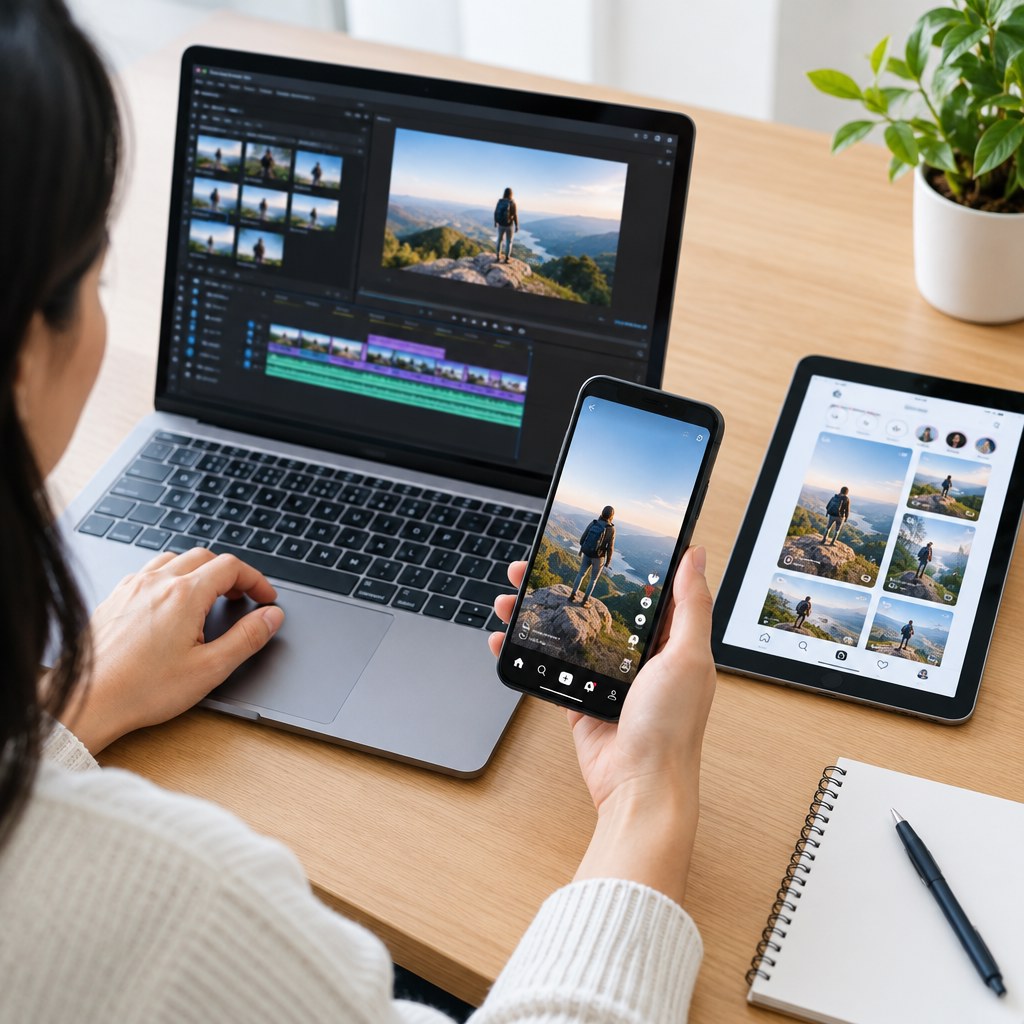
You can post manually, use each platform’s built-in scheduler, or manage everything from one dashboard.
Native Scheduling
TikTok’s desktop tools, Meta Business Suite, and YouTube Studio offer scheduling. You get access to in-app sounds and the newest features. The trade-off is more logins.
Metricool
One calendar for all four platforms, plus combined analytics. It saves time, but some in-app features like trending sounds may not be available.
A practical hybrid works well: schedule the music-free master everywhere through Metricool, then publish natively on any platform where you want to attach a trending in-app sound.
Affiliate disclosure: The Metricool link below is an affiliate link. If you sign up and make a qualifying purchase through it, Digital Nomad Clips may earn a commission at no additional cost to you.
Want to organize your content calendar? Explore Metricool using our referral link to review its scheduling and analytics features. Compare its available plans and connected-platform features before choosing what works for you.
Step 6: Use Analytics to Improve the Next Video
After a few days, compare results across platforms. Look at retention (where people drop off), shares, saves, comments, and follows rather than views alone. If viewers leave early on one platform only, test a different hook there next time. Strong saves on Instagram or high search traffic on YouTube suggest the topic deserves a longer follow-up. Results vary by audience and timing, so judge trends over several posts instead of one.
Example Workflow: One Travel Tip Video, Four Posts
Imagine you filmed a 40-second clip titled “3 Things I Pack for Every Remote Work Trip.”
- Day 1: Confirm all footage is yours. Edit in CapCut, add burned-in captions centered in the frame, and export a music-free master plus a version with licensed music.
- Day 1: Write four text packages. TikTok: “Stop overpacking for workations.” Instagram: “My 3-item remote work kit (save this).” YouTube: “Remote Work Travel Packing Tips | 3 Essentials.” Facebook: “If you work while traveling, these 3 items make it so much easier.”
- Day 2: Schedule the master in Metricool for YouTube and Facebook. Post natively on TikTok and Instagram with a trending sound layered at low volume.
- Day 5: Review retention and saves, and note which hook performed best for future clips.
Working from long-form audio? The same logic scales up, as explained in our guide to repurposing a podcast into short-form content.
Need help preparing Instagram posts? Our Instagram Creator Settings & Posting Toolkit is a paid 14-page PDF with posting checklists, settings guidance, and reusable planning worksheets. See the Gumroad page for the current price and full details; purchasing it does not guarantee followers, views, or income.
Quick Repurposing Checklist
- ✅ Rights confirmed for footage, people, and music
- ✅ 9:16 master exported without watermarks
- ✅ Key text and faces kept in the center-safe area
- ✅ Unique hook, caption, hashtags, and CTA for each platform
- ✅ AI disclosure toggled where applicable
- ✅ Scheduled natively or via Metricool
- ✅ Analytics reviewed and lessons noted
Frequently Asked Questions
Will posting the same video everywhere hurt my reach?
There is no guaranteed penalty for cross-posting your own original content. Clean, watermark-free files with native-feeling captions simply give each upload its best chance.
Should I post at the same time on every platform?
Not necessarily. Each audience may be active at different times, so check your analytics and stagger posts if needed.
Start With Your Next Video
Pick one clip you already own and build a clean master. Then use the checklist above to adapt it for all four platforms this week. Explore more practical clipping guides here on Digital Nomad Clips, or visit Shop & Resources for the related tools and creator toolkit.